Once data sets or tables have been selected in the previous stage of modeling, the user needs to choose the columns or 'attributes' that will be used to drive the analysis in Discover. These attributes are used to create member hierarchies, metrics, and measures.
Attributes can be used directly; they can be used in creating other calculated attributes; they can be used to generate measures; used in creating calculated measures; and used as sort columns for other attributes.
Note: The Pyramid modeling heuristics engine will often auto determine whether a field should be a measure or not. When it is selected as a measure, the engine normally sets the source column to hidden. You can manually override these selections.
Columns page
Much of the functionality in the Columns panel is also available in the Tables panel; whether you choose to manage columns from the Tables or Columns panel will largely depend on personal preference.
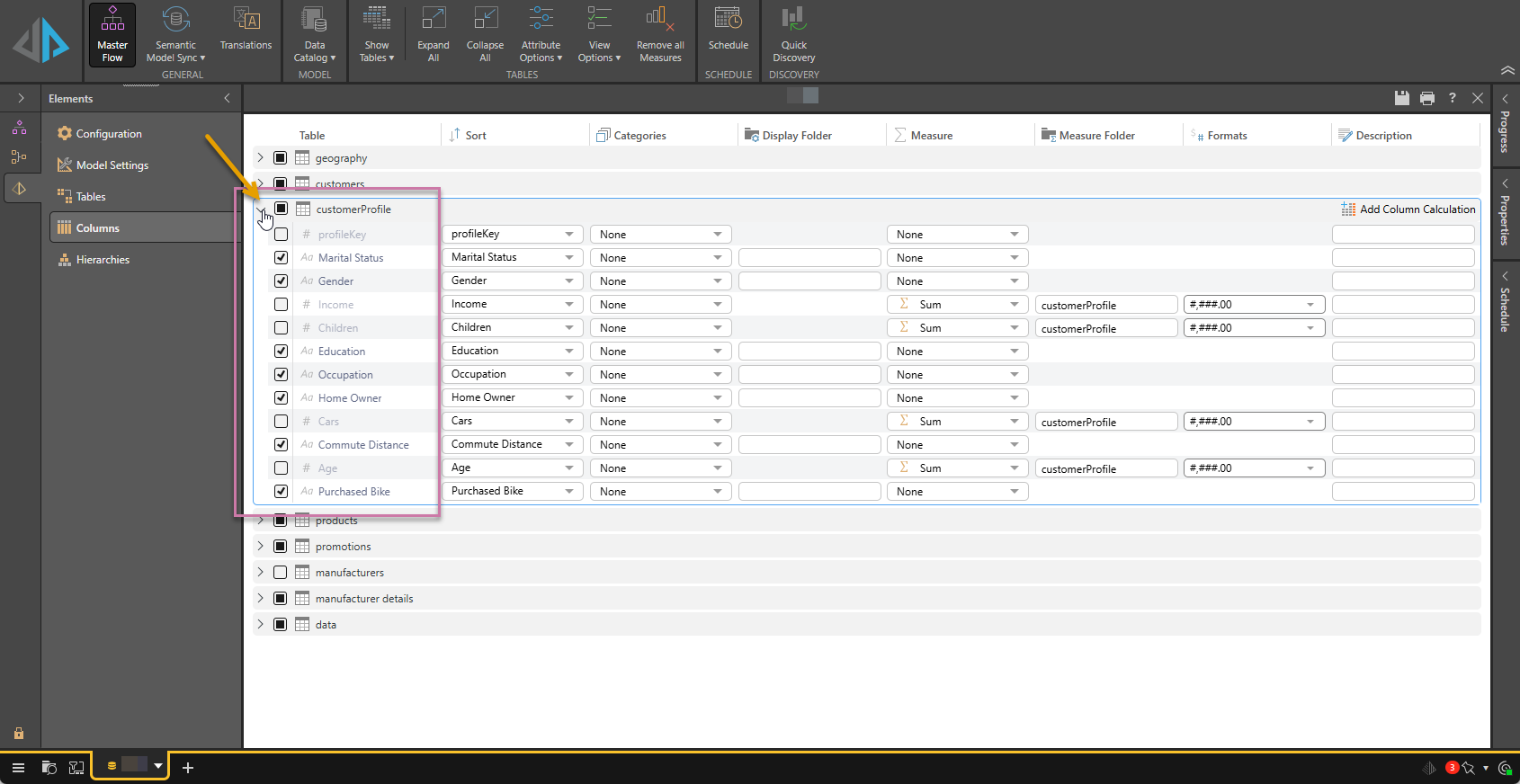
Table
The first column (purple highlight above) shows each of the columns within each table.
Expand each table to view its attributes (orange arrow), and make the necessary adjustments.
Hidden Columns
The checkbox in front of each column name indicates whether this is a Hidden Column or not:
- Where the checkbox is selected, the column is kept in the data model.
- Where the checkbox is cleared, the column is hidden. Hidden columns are not shown as attributes in the final model, but that can be used to configure calculated columns, measures, and user hierarchies.
Columns used for metrics are usually hidden, so Pyramid modeling heuristics automatically hide auto-set measure columns.
Important: A hidden column is not to be confused with a DELETED column. Deleted columns are removed completely from the model. This can make a model lighter and faster - but they cannot be used as a source for any other functionality. Removing unneeded columns is a useful exercise when appropriate. This should be done from the Data Flow, when selecting which tables and columns to include in the ETL.
Column Types
Each of the columns within each table has a data type, which is determined heuristically:
-
 '#' means an integer or whole number
 -
 '0.9' means a decimal, double, or floating point number
 -
 'Aa' means a string
 -
 A calendar icon means date or time
 -
 A true / false icon means boolean
Context Menus
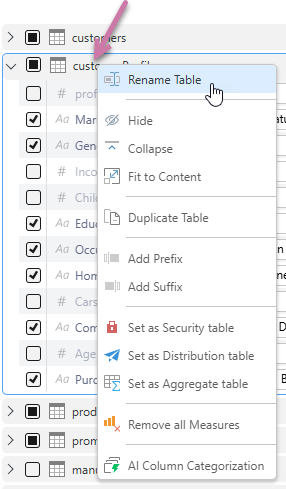
Table Header
Right-click a table header to:
- Rename the table.
- Duplicate the table.
- Add a prefix to the table name.
- Add a suffix to the table name.
- Mark it as a security table.
Attribute
Right-click an attribute to:
- Rename.
- AI Column Categorization.
- Set as a Masked column.
- Set as a Security column.
- Set as a Distribution column.
- Set as Unique identifier.
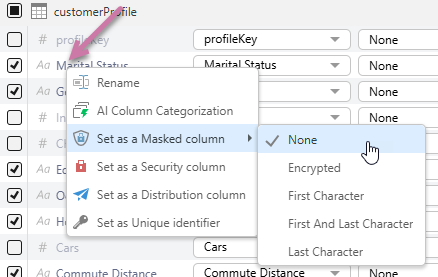
Security columns and tables don't appear in the data model in Discover, but they do appear in Member Security, where admins can use them to build custom sets.
Related information
Other Columns
- Column Sorting
- Categories
- Display Folder
- Measure and Measure Folder
- Formats
- Description and Add Column Calculation